
Website Migration Checklist: Moving Off a Starter Platform Without Losing Anything
A board-approved move can feel straightforward until someone asks where the old donation form sends its submissions, or whether that annual report PDF has a link people still use. A website migration goes more smoothly when your team answers those questions before the new site is ready to launch.
Use this website migration checklist in order, whether you’re planning a WordPress migration or moving from Squarespace to WordPress. It’s designed to help your staff and web partner keep track of the details that are easy to miss when attention shifts to the new design.
1. Confirm the scope, platform, and project owners
Start by agreeing on what the move needs to accomplish. Identify the visitor tasks the new site must support, the staff updates it should make easier, and the systems it needs to connect to. If you’re still weighing platform options, our guide to WordPress for nonprofits explains some practical trade-offs.
Name a project owner on your staff and a decision-maker who can approve important choices. Then identify who will handle content, technical access, testing, and launch. A website redesign budget should include migration, integrations, accessibility, staff time, and post-launch checks, not only design and development.
If you’re still confirming whether a rebuild is the right move, start with the signs your nonprofit has outgrown its website. For broader planning questions, see what to consider in a nonprofit website redesign.
2. Verify ownership and access before work begins
Gather account access while the current site is still available and the right people are on hand. Confirm that the organization (not an individual staff member, former contractor, or vendor) controls:
- The domain registrar and DNS account
- Website hosting and the CMS account
- Analytics and search tools
- The email platform and CRM
- Donation and payment processor accounts
- Licenses for plugins, themes, and other paid tools
Keep this information in a secure location the organization controls, and make sure more than one appropriate staff member can access it. Record renewal dates and account contacts, too. A license tied to an individual’s account can become a problem if that person leaves.
Document the current DNS settings before anyone changes them. Website records and email records serve different purposes; changing the wrong setting can interrupt email even when the website comes back online. Have the person responsible for DNS confirm which records need to change and which must stay in place.
3. Inventory the current site and its connections
Make a working list before content is copied or pages are removed. Include every page and post, plus files and features that may not appear in the main navigation:
- PDFs, reports, downloadable forms, and other documents
- Images, videos, and embedded media
- Donation, contact, registration, and volunteer forms
- Third-party embeds, such as event calendars or maps
- Landing pages used in campaigns, email signatures, or printed QR codes
For each form or integration, note what it does, where information goes, and who is responsible for it. For example, a signup form might add a contact to an email list, send a notification to a program manager, and pass data to a CRM. Record each destination; “the form works” is not enough if the submission disappears into the wrong inbox.
Also note which URLs bring in visitors or have links from other sites. Analytics, Google Search Console, and any available backlink reports can help identify pages that deserve particular care. Export or save relevant historical analytics data so your team can refer to it after launch.

4. Decide what happens to each page before the new build
A migration is a good time to decide whether each page should be kept, rewritten, combined with another page, or retired. Don’t wait until the new site is assembled to make those calls. Migrating a confusing page structure simply gives the confusion a fresh coat of paint.
Check program pages, staff profiles, events, news, resource libraries, and old campaign pages. Confirm facts and contact details with the staff who own that information. When two pages serve the same purpose, decide which one will remain and where any useful material will go.
This planning phase is also the right place to map the new structure and sequence the work. Our step-by-step website redesign project plan can help your team think through the phases before build work begins.
5. Create a redirect map for old URLs
Give every existing URL a clear decision: keep, redirect, or retire. If a valuable page can keep its current URL, preserving it can avoid unnecessary changes. If the address changes, map the old URL to the closest relevant new page.
A redirect map can be a simple spreadsheet with columns for the old URL, its new destination, the decision, and whether the redirect has been tested. Include PDFs and campaign URLs if they have useful links or still appear in materials your organization has shared.
Avoid sending every old URL to the homepage. Someone following a link to a specific program or report expects to reach that information, not start over. A homepage redirect also gives search engines a poor match for the original page. For pages that no longer have a useful equivalent, decide whether to retire them rather than redirecting visitors somewhere unrelated.
Use direct, permanent redirects to the final destination and check for broken paths or redirect loops. Google’s site move documentation offers additional guidance for changes to URLs or domains. Redirects help visitors and search engines find the new location; they don’t guarantee a particular ranking or traffic outcome.
6. Rebuild forms and check every connected system
Re-create each form in the new site and test what happens after submission. Confirm that fields, required questions, confirmation messages, and notifications match what your team needs. Check that submissions reach the correct staff inbox, email list, or CRM record.
Give donations special attention. Rebuild the giving flow and test it from the donation page through confirmation and receipting. Check recurring gift options, payment processor connections, and any handoff between the donation platform and your CRM. Confirm where donor history is stored and make any necessary exports before ending a platform subscription or access arrangement.
Use test transactions where possible, and ask the staff who reconcile gifts to confirm that test records arrive correctly. Test other essential forms as well, including registration, applications, and contact requests. Check both the confirmation visitors see and the notification your team receives.
7. Carry over SEO details and make accessibility part of the build
For pages you’re keeping, review titles, meta descriptions, headings, image descriptions, and internal links. Update links within the new site to point directly to new URLs rather than routing through redirects. Check that the new sitemap lists the pages you intend search engines to find.
Put the new analytics tracking in place and verify that it fires on the staging site before launch. Test important events, such as a donation completion or form submission, so you know the tracking records actions, not just page views. Keep historical analytics accessible for comparison after the move.
Accessibility belongs in the build and review, not in a final cleanup phase. Test key journeys with a keyboard: navigating the menu, finding a program, completing a form, and making a donation. Check that focus is visible and forms provide understandable labels and errors. Our guide to accessible website design fixes offers practical checks your team can use.
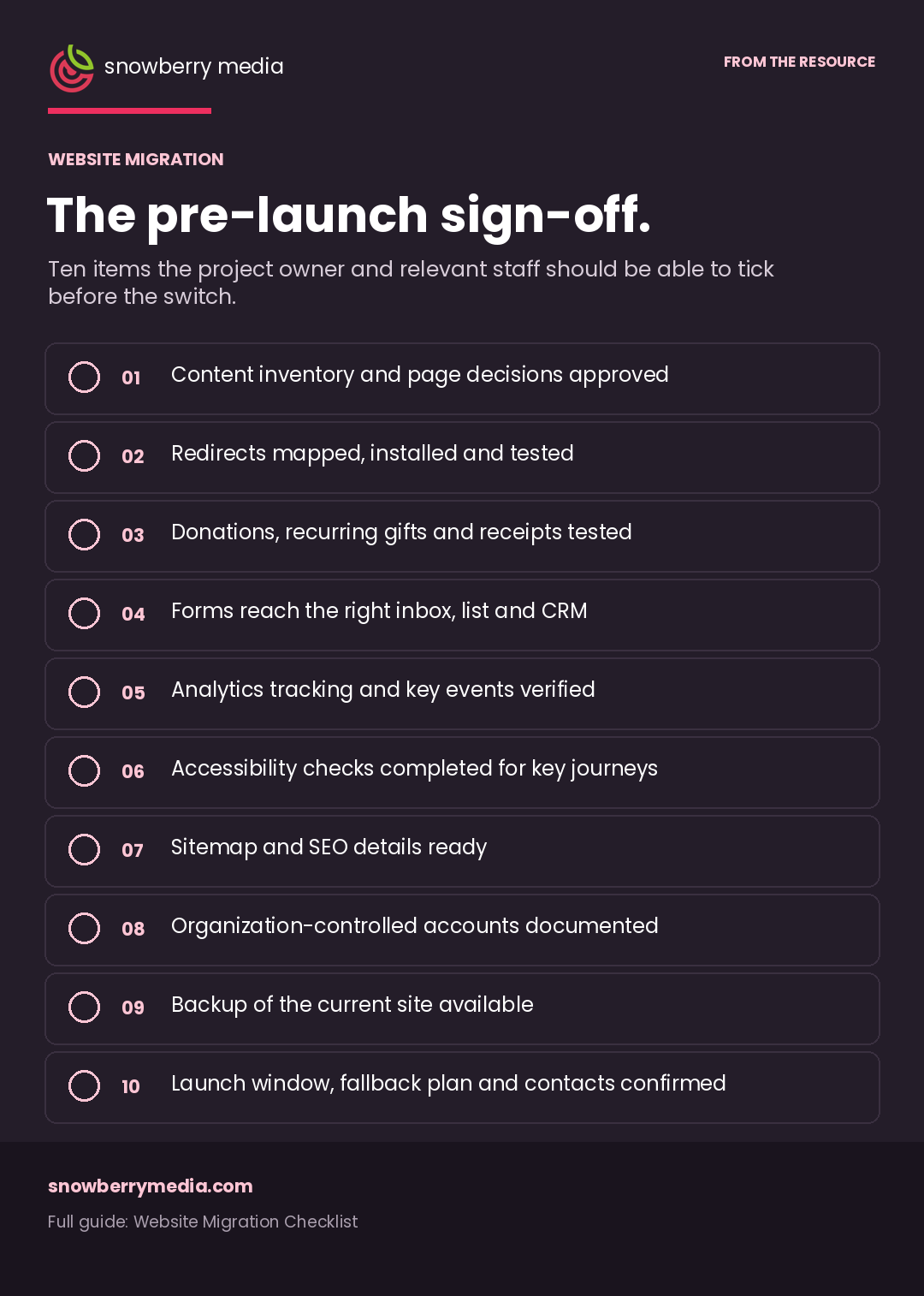
8. Run this pre-launch sign-off
Before the switch, the project owner and relevant staff should be able to check off each item:
- The content inventory and page decisions are approved.
- Redirects are mapped, installed, and tested.
- Donations, recurring gifts, receipts, and processor connections have been tested.
- Forms send information to the correct inboxes, lists, and CRM records.
- Analytics tracking and key events have been verified.
- Accessibility checks have been completed for essential journeys.
- The sitemap and SEO details are ready.
- Organization-controlled accounts and access are documented.
- A backup of the current site is available.
- The launch window, fallback plan, and on-call contacts are confirmed.

9. Plan the cutover and first two weeks
Choose a launch window when the people responsible for the website, forms, DNS, and donations can respond. Agree in advance on what happens if a critical feature fails, who makes the call to pause or reverse a change, and how the team will contact one another. Keep the previous site and its backup available while the new site is being checked.
After the DNS change, confirm that the site loads securely and that email still works. Test the redirect map, submit each important form, and complete a test donation. Check that the new site is not accidentally blocked from search indexing by a setting carried over from staging. Then submit the new sitemap in Google Search Console rather than assuming it will be picked up automatically.
For the first two weeks, check key pages and visitor tasks daily. Look for broken links, missing images, form errors, failed donation steps, 404 pages, and tracking problems. Compare traffic and conversions with the records you saved before launch. A temporary fluctuation in search traffic can happen while search engines recrawl a changed site; if a dip persists or key pages disappear from search results, investigate the affected URLs and redirects rather than waiting it out.
This is the third piece in our series on organizations that have outgrown their websites, following the guides to recognizing the signs and budgeting for a redesign. If you’d like a starting point for reviewing your current site and planning the move, request a free website audit.
similar resources

When the Donation Platform Fails Mid-Campaign: A Year-End Giving Contingency Plan

What a Website Redesign Actually Costs (and How to Budget for One)

Your Nonprofit Outgrew Its Website: 7 Signs It’s Time to Rebuild
